
Hey there! I am Bonny Elangbam. If you’ve ever felt that mini-heart attack when your site looks “broken” during an update, this guide is for you. Maintenance isn’t a sign of failure; it’s a sign of growth.
I have designed this walkthrough to ensure your brand stays professional even when the hood is up.” In my years of building digital spaces, I have learned that how you handle downtime says more about your brand than how you handle uptime. Let’s get your maintenance mode looking sharp and functional.
Why You Need a Professional WordPress Maintenance Mode
Running a website is a lot like owning a high-performance vehicle. You can’t keep it on the road forever without changing the oil, rotating the tires, or upgrading the engine.
In the digital landscape, this translates to updating core plugins, swapping out heavy themes, or performing deep database optimization.
When you perform these intensive tasks on a live site, the front-end can become a chaotic mess of unstyled text and broken links.
When you enable WordPress maintenance, you aren’t just putting up a “closed” sign. You are actively protecting your user experience and your hard-earned brand reputation.
If a potential client lands on a broken page or a site full of PHP error strings while you’re mid-tweak, the trust is broken instantly.
They won’t think “Oh, they’re just updating,” they’ll think your site is insecure or unprofessional. By using a dedicated, well-designed maintenance page, you maintain your brand’s authority, provide clear communication, and keep your bounce rate from skyrocketing during technical windows.
The Power of Elementor for WordPress Maintenance Pages
Elementor has completely revolutionized how we handle site downtime. In the early days of WordPress, users were stuck with a generic, cold white screen that simply stated “Briefly unavailable for scheduled maintenance.” It was clinical and often left users wondering if the site would ever return.
With Elementor, we transform this “dead air” into a high-converting landing page. You can utilize the visual builder to create an aesthetic that matches your brand perfectly.
Whether you want to collect new leads via a newsletter signup, offer a “patience-is-a-virtue” discount code, or redirect users to your vibrant social media community, Elementor makes it effortless. It turns a period of technical silence into a strategic moment of brand reinforcement.
Step 1: Crafting Your WordPress Maintenance Strategy
Before we touch a single widget, we need a strategy. A maintenance page is a bridge between your current state and your future improvements.
Defining Your Goals
What do you want to achieve while your site is under the hood?

- Lead Generation: Just because the shop is closed doesn’t mean you can’t take names. A simple email field can capture visitors who are interested in your launch.
- Social Expansion: Use this time to grow your Instagram or LinkedIn following by making them the primary point of contact.
- Customer Support: If you are an e-commerce site, provide a direct link to a support portal or a WhatsApp chat so customers don’t feel abandoned.
Creating the Template
To start the technical process, navigate to Templates > Add New in your WordPress dashboard. Select Page from the dropdown menu and name it something like “Professional Maintenance Landing.”
This ensures that months from now, you’ll know exactly which template to toggle when you need to run another update.
Step 2: How to Use Elementor to Set Up a WordPress Maintenance Page
Now, let’s dive deep into the design. Open your template with the Elementor editor and let’s build something memorable.
Designing the Layout for WordPress Maintenance Mode
I always recommend a clean, minimalist approach. Start with a Full Width section. Use a background that reflects your brand, perhaps a high-quality blurred image of your office or a sleek, branded gradient.
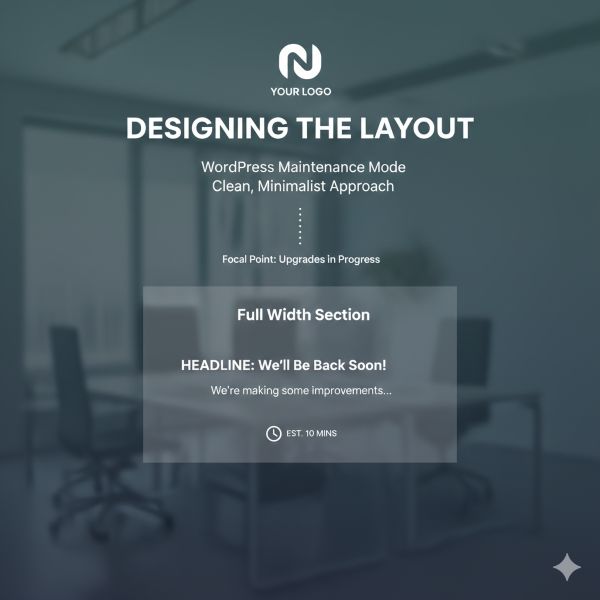
Ensure your logo is the focal point at the top of the page. This lets visitors know they’re exactly where they should be, and that upgrades are in progress.
Adding the Countdown Timer in Elementor Maintenance Mode
A Countdown widget removes uncertainty by giving visitors a precise timeline instead of an open-ended “Coming Soon” notice. Clearly stating when the site will be live again helps manage expectations and minimize frustration.
If the update duration is uncertain, a progress bar is an effective alternative, signaling steady progress through a visual completion percentage.
Integrating Social Media Links on Your WordPress Maintenance Page
Don’t let your traffic vanish into the void. Use the Social Icons widget to bridge the gap. In 2026, social proof is everything.
By moving the conversation to X (Twitter) or Discord, you can provide real-time updates and keep your community engaged.
Step 3: Deep Customization and Content Pillars
A truly effective maintenance page needs more than just a timer. To keep it professional, we need to add substance.
Adding a “Value Proposition” Section
Even though the site is down, tell people why they should care when it’s back up. Use the Icon Box widget to list three new features or improvements coming after the maintenance.
- Faster Loading Speeds: We are optimizing our servers for a lightning-fast experience.
- New Design: A fresh, modern look to make navigation easier for you.
- Exclusive Content: We’re dropping three new guides immediately upon return.
The Newsletter Hook
Since your site is temporarily “exclusive,” use the Form Widget to offer a “Maintenance Insider” discount. “Sign up now, and we’ll email you a 20% discount code the moment we go live.”
This turns a negative (site downtime) into a massive positive (lead acquisition).
Once your design is polished, follow these steps to go live:
- Navigate to Elementor > Tools.
- Select the Maintenance Mode tab.
- Choose Mode: Select “Maintenance” (sends a 503 status code to Google).
- Who Can Access: Set to “Logged In.”
- Select Template: Choose the template we just built and hit Save Changes.
Step 4: Activating the Maintenance Mode Settings
Once your design is polished, mobile-responsive, and saved, you need to activate the gatekeeper.
- Navigate to Elementor > Tools in your sidebar.
- Select the Maintenance Mode tab.
- Choose Mode: Select “Maintenance” (this sends a 503 status code to Google, which is vital for SEO).
- Who Can Access: Set this to “Logged In” so you can see your live site while visitors see the maintenance page.
- Select Template: Choose the template we just built.
- Save Changes.
Advanced SEO and Technical Considerations
When you ask how to use Elementor to set up a WordPress maintenance page, you must consider the “hidden” technical side.
The 503 vs. 200 Status Code
This is where many beginners fail.
- Maintenance Mode (503): Tells search engines, “I’m temporarily busy, don’t change my rankings, just come back later.”
- Coming Soon (200): Tells search engines, “This is my new site, please index this page.”
If you use “Coming Soon” for a site that already has rankings, Google might start indexing your “Under Construction” page instead of your actual content, which can be an SEO disaster.
Always use the “Maintenance” setting for updates to existing sites.
Common Mistakes to Avoid
To ensure your maintenance period goes smoothly, avoid these frequent pitfalls:
- Forgetting to Log Out: Always check your site in an Incognito Window to verify the maintenance page is actually visible to the public.
- Ignoring SEO: Never use “Coming Soon” mode for an existing site; the 200 status code can confuse Google and hurt your rankings.
- Heavy Images: Keep your maintenance page lightweight. If it takes 10 seconds to load a “Coming Soon” page, users will leave before they see your message.
Key Takeaways for WordPress Maintenance
| Strategy | Action Item | Benefit |
| SEO Safety | Use 503 Status in Elementor settings. | Prevents Google from de-indexing your pages during downtime. |
| Brand Continuity | Apply consistent logos, fonts, and brand colors. | Maintains professional trust and confirms site authenticity. |
| Functional Downtime | Add Countdown Timers and Email Forms. | Transforms idle traffic into warm leads and builds anticipation. |
| Mobile Priority | Enable responsive design for all screen sizes. | Reduces bounce rates from impatient mobile visitors. |
| Clear Communication | Provide social media links or support contact info. | Ensures users have a way to reach you while the site is “dark.” |
Mastering Your Site’s Downtime
Learning how to use Elementor to set up a WordPress maintenance page is one of the most important “sanity-saving” skills you can acquire. It removes the stress of site updates and replaces it with a controlled, professional environment.
By following this guide, you have ensured that your site remains a high-quality representation of your brand, even when you’re deep in the code.
Remember, a maintenance page isn’t just a hurdle for your visitors; it is an opportunity to build anticipation. Use your downtime wisely, keep your SEO safe, and always communicate clearly with your audience.
Ready to level up your WordPress game?
If this guide helped you save your site’s reputation today, I would love to hear about it. Leave a comment below with your maintenance page success stories. Also, if you’re looking for more design inspiration, feel free to ask about my favorite Elementor layout hacks. Contact me for further details.
Does WordPress maintenance mode affect my Google ranking?
When correctly configured as “Maintenance” (503), it signals a temporary pause. Google understands this and will simply re-crawl your site later without penalizing your current rankings.
Can I still edit my site while WordPress maintenance mode is active?
Yes. Because you set the access to “Logged In” users, you and your team can navigate the site perfectly. This allows you to test the new updates live before the public sees them.
Do I need Elementor Pro for a WordPress maintenance page?
While the basic maintenance toggle is available in the free version, Elementor Pro offers the essential Countdown Timer and Forms widgets that make the page truly functional for business.
How do I know if it is working?
Open your website in an “Incognito” or “Private” window where you are not logged in. If you see your custom maintenance page, it’s working perfectly.
What if I want to exclude certain pages from WordPress maintenance?
Elementor’s built-in tool is “all or nothing.” If you need to keep certain pages (like a specific landing page) active, you might need a more advanced plugin, but for 99% of users, the Elementor tool is the best balance of speed and efficiency.