
Hello! I’m Bonny Elangbam. Over my career as a WordPress and Shopify Developer, I have learned that the difference between a project taking ten hours or five hours often comes down to one thing: workflow efficiency.
When you are building a lead-generation machine for your business, every minute saved on manual dragging and clicking is a minute you can spend on strategy and conversion optimization.
In this guide, I’ll share the essential Elementor shortcuts that I use daily to streamline professional web builds.
Why Efficiency Matters in Web Development
Time is the most expensive resource in any business. If you are a DIY business owner or a budding designer, mastering the keyboard is your fastest route to a professional output.
Using Elementor shortcuts isn’t just about being “fancy”, it’s about maintaining your creative flow without being interrupted by nested menus.
According to data from HubSpot, users expect a site to load in under two seconds, but “development speed” is what allows a business to pivot during a sale or a new product launch. If your workflow is slow, your market response is slow.
1. The Finder (Cmd/Ctrl + E)
This is the “God Mode” of Elementor. Instead of clicking back to the dashboard to find a different page, simply hit Cmd/Ctrl + E. A search bar appears, allowing you to jump between pages, templates, or even site settings instantly.
2. Copy and Paste Styles (Cmd/Ctrl + Shift + V)
Design consistency is key to brand authority. If you have styled a button perfectly, with specific padding, hover effects, and border radii, don’t recreate it.
- Copy the original element (Cmd/Ctrl + C).
- Right-click the target element and select Paste Style, or use the shortcut. This applies the “look” without changing the actual content.
Advanced Elementor Shortcuts for Layout Management
Speeding up your design process allows you to test more landing page variations, which directly impacts your lead generation.

3. The Navigator (Cmd/Ctrl + I)
When you have complex layouts with overlapping margins or Z-indexes, selecting a specific layer can be frustrating.
The Navigator is a tree-view of your entire page. Keeping this window open allows you to drag and drop elements within the structure with surgical precision.
Visual Guide: The Navigator appears as a floating panel showing every Section, Column, and Widget in a hierarchical list. It is the best way to move “invisible” spacers or hidden mobile elements.
4. Quick Undo and Redo (Cmd/Ctrl + Z / Shift + Z)
We all make mistakes. Instead of manually deleting a widget you accidentally dragged into the wrong column, use the classic undo. It works flawlessly within the Elementor editor and saves significant frustration.
5. Duplicate Elements (Cmd/Ctrl + D)
Building a feature list with six icons? Build the first one perfectly, then hit the duplicate shortcut five times. This is the foundation of rapid prototyping.
Mastering the “Hidden” Workflow Secrets
To truly design at an elite level, you need to go beyond the basic keyboard keys and look at systemic Elementor shortcuts. These built-in efficiencies are what separate a hobbyist from a professional developer who can launch a high-converting site in record time.
6. Responsive Toggling (Cmd/Ctrl + Shift + M):
Instantly switch between views. With mobile traffic now accounting for over 68% of global web users in 2026 (Source: Statista), ignoring the mobile-specific layout is the fastest way to kill your conversion rate.
7. The Template Library (Cmd/Ctrl + L):
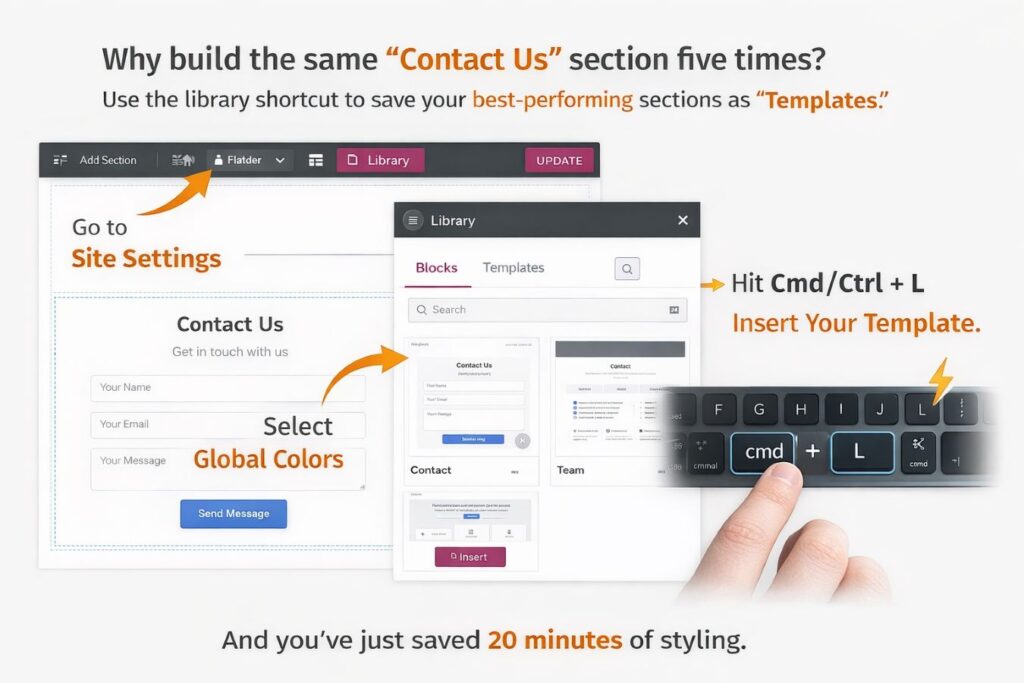
Why build the same “Contact Us” section five times? Use the library shortcut to save your best-performing sections as “Templates.” When starting a new page, hit Cmd/Ctrl + L, insert your pre-built block, and you’ve just saved 20 minutes of styling.
8. Delete Section/Widget (Delete Key):
It sounds simple, but many users still right-click and select “Delete.” High-speed developers keep one hand on the mouse and one on the keyboard. Highlight an element in the Navigator and tap Delete. It’s immediate.
9. The Shortcut Cheat Sheet (Cmd/Ctrl + ?):
Can’t remember a specific key? Elementor has a built-in HUD (Heads-Up Display) that shows you every shortcut available. This is the fastest way to learn while you work.
10. Preview Page (Cmd/Ctrl + P):
Stop clicking the “eye” icon. Use the preview shortcut to see your live changes in a new tab instantly. This helps you check for “scroll-jacking” or animation lag before you hit publish.
Beyond these ten, mastering the Elementor shortcuts for specific widget settings can save hours over the course of a project.
For instance, when you are in the middle of a complex build, using Elementor shortcuts to quickly toggle the Navigator or the Finder prevents the “mental fatigue” that comes from clicking through infinite sub-menus.
Bonus #11: Custom Hotkeys and External Citations
While the native Elementor shortcuts are powerful, developers looking for even more speed often use plugins like Elementor Extras or browser extensions to map custom hotkeys.
For a deeper dive into how site speed and workflow impact your bottom line, check out the Google Web Vitals Documentation, which highlights how efficient design translates to better SEO rankings.
Technical Optimization for Faster Renders
Efficiency isn’t just about keyboard keys; it’s about how you manage the site’s technical health while designing.
- Asset Management: Enable “Improved Asset Loading” in Elementor settings. This reduces the size of the code Elementor generates, making the editor and your live site snappier.
- Global Fonts/Colors: By defining your brand once in Site Settings, you eliminate the need to manually color every heading. This is the ultimate “shortcut” for long-term site maintenance.
- SVG Icons: Instead of heavy PNGs, use SVG icons. They are infinitely scalable and load 80% faster.
- DOM Depth Control: Every container you nest adds a layer to the Document Object Model. Excessive nesting forces the browser to work harder to calculate layouts. Use Flexbox or Grid to keep your structure flat; a “shallow” hierarchy ensures the browser paints the page instantly.
- Smart Media Loading: For media-heavy sections, ensure “Lazy Load” is active for all images below the fold. For videos, use a placeholder image with a play overlay. This prevents heavy video scripts from loading until the user actually clicks, significantly cutting initial load times.
- Selective Script Execution: Not every page needs every plugin. Use a script manager to disable heavy assets (like contact form scripts or map APIs) on pages where they aren’t being used. This keeps your HTTP requests lean and your site lightning-fast.
Efficiency Comparison- Elementor Shortcuts
| Strategy | Performance Benefit | Workflow Impact |
| Global Styles | Lower CSS Overhead | 1-Click Brand Updates |
| Flat DOM | Faster Render Paints | Easier Layout Debugging |
| Lazy Loading | Reduced Initial Weight | Better Mobile Experience |
About the Author: Bonny Elangbam
Bonny Elangbam is a seasoned WordPress and Shopify Developer with over 11 years of experience in crafting high-performance digital experiences. Having built hundreds of websites, Bonny specializes in bridging the gap between aesthetic design and technical SEO.
My philosophy is simple: Tools like Elementor are most powerful when paired with an efficient workflow. By focusing on speed and precision, Bonny helps businesses transform slow, clunky websites into sleek, lead-generating machines.
When I’m not coding custom hooks or optimizing page speed, I mentor the next generation of developers on how to work smarter, not harder.
Your Cheat Sheet: Top Elementor Shortcuts at a Glance
| Action | Windows Shortcut | Mac Shortcut | Pro/Free? |
| Open Finder | Ctrl + E | Cmd + E | Free |
| Copy Style | Ctrl + Shift + V | Cmd + Shift + V | Free |
| Open Navigator | Ctrl + I | Cmd + I | Free |
| Duplicate Element | Ctrl + D | Cmd + D | Free |
| Undo Action | Ctrl + Z | Cmd + Z | Free |
| Template Library | Ctrl + L | Cmd + L | Free |
| Responsive View | Ctrl + Shift + M | Cmd + Shift + M | Free |
| Preview Page | Ctrl + P | Cmd + P | Free |
Elevate Your Design Strategy
Mastering these Elementor shortcuts is the first step toward moving from a beginner to a pro-level designer. By cutting down on repetitive tasks, you free up your mental energy to focus on what truly matters: User Experience (UX) and Lead Generation.
A fast workflow leads to a faster website, and a faster website leads to higher rankings and better conversions.
However, I know that for many business owners, the goal isn’t just to design fast, it’s to get results. If you need a partner who brings over a decade of technical expertise to your project, I am here to ensure your site is built for performance from the ground up.
Ready to turn your website into a hard-working growth engine? Contact me today.
Where can I find the full list of Elementor shortcuts?
While in the Elementor editor, you can press Cmd/Ctrl + ? to bring up a complete cheat sheet of all available keyboard shortcuts.
Will using many widgets slow down my site, even if I use Elementor shortcuts?
Yes. While Elementor shortcuts speed up your work, “widget bloat” can slow down the user experience. To get the best results, use Elementor Pro widgets, which are often more optimized and replace the need for 3-4 separate free plugins.
Will using many widgets slow down my site, even if I use Elementor shortcuts?
Yes. Shortcuts help you work faster, but too many widgets can make the server work more slowly. Always aim for a “clean” DOM structure by using the fewest widgets necessary to achieve your design.
Why is the Navigator shortcut so important?
The Navigator is essential for “Responsive Web Design.” It helps you find hidden elements that might be set to “Hide on Mobile,” which are otherwise invisible on the canvas.
How do I speed up my site besides using Elementor shortcuts?
Beyond workflow, ensure you are using a lightweight theme like Hello Elementor and high-quality hosting. Speed is a combination of how you build and where you host.